
Capturing screen and pointing out
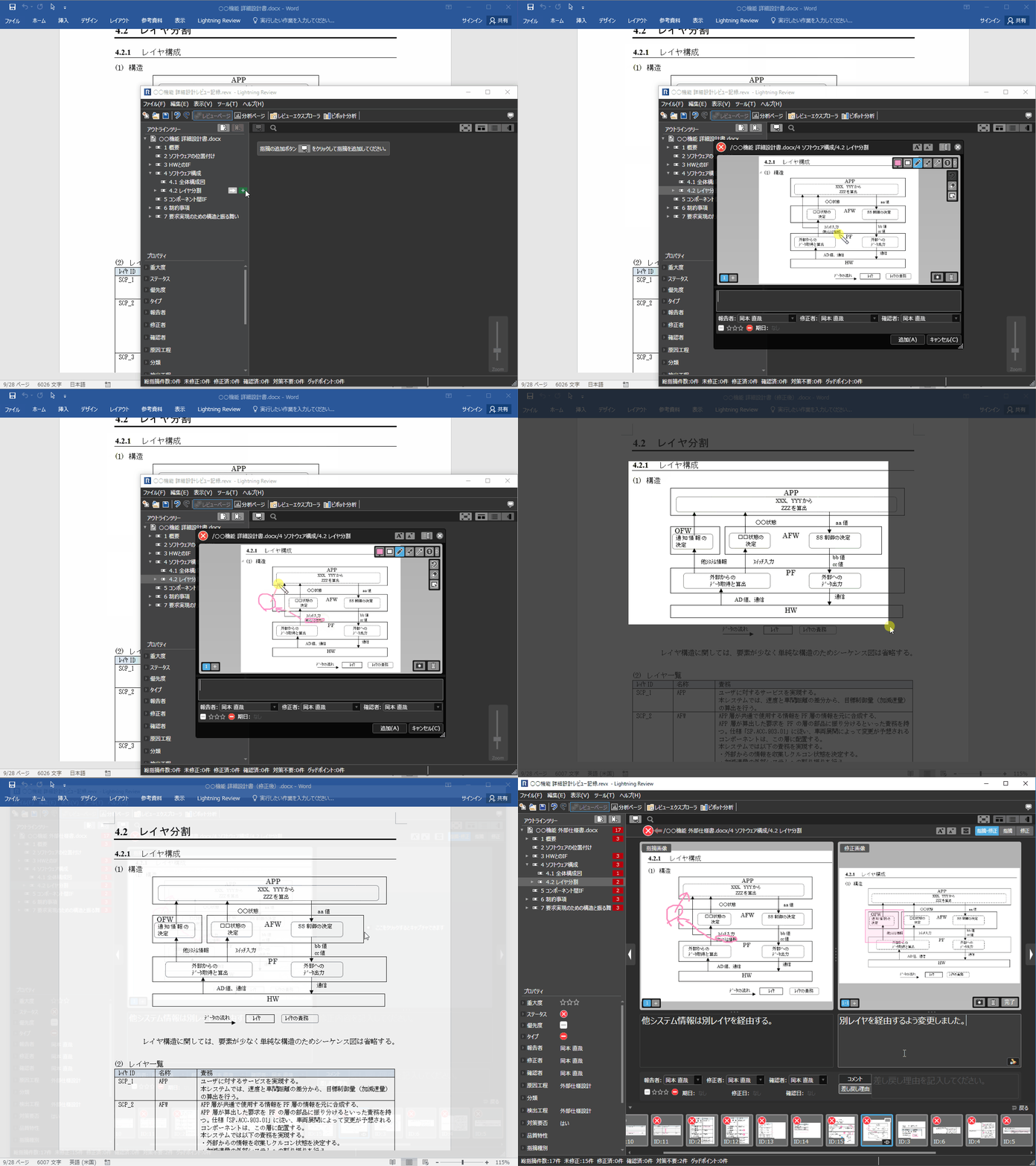
To register what pointed out is simply capturing the screen of review target and writing the details.
Since the images are shared, the problems are conveyed without fail, and misrecognition such as misrepresentation of pointed areas can be prevented.
You can also capture and register the correction results in the same way.
By comparing the images before and after the correction, you can check them at a glance.
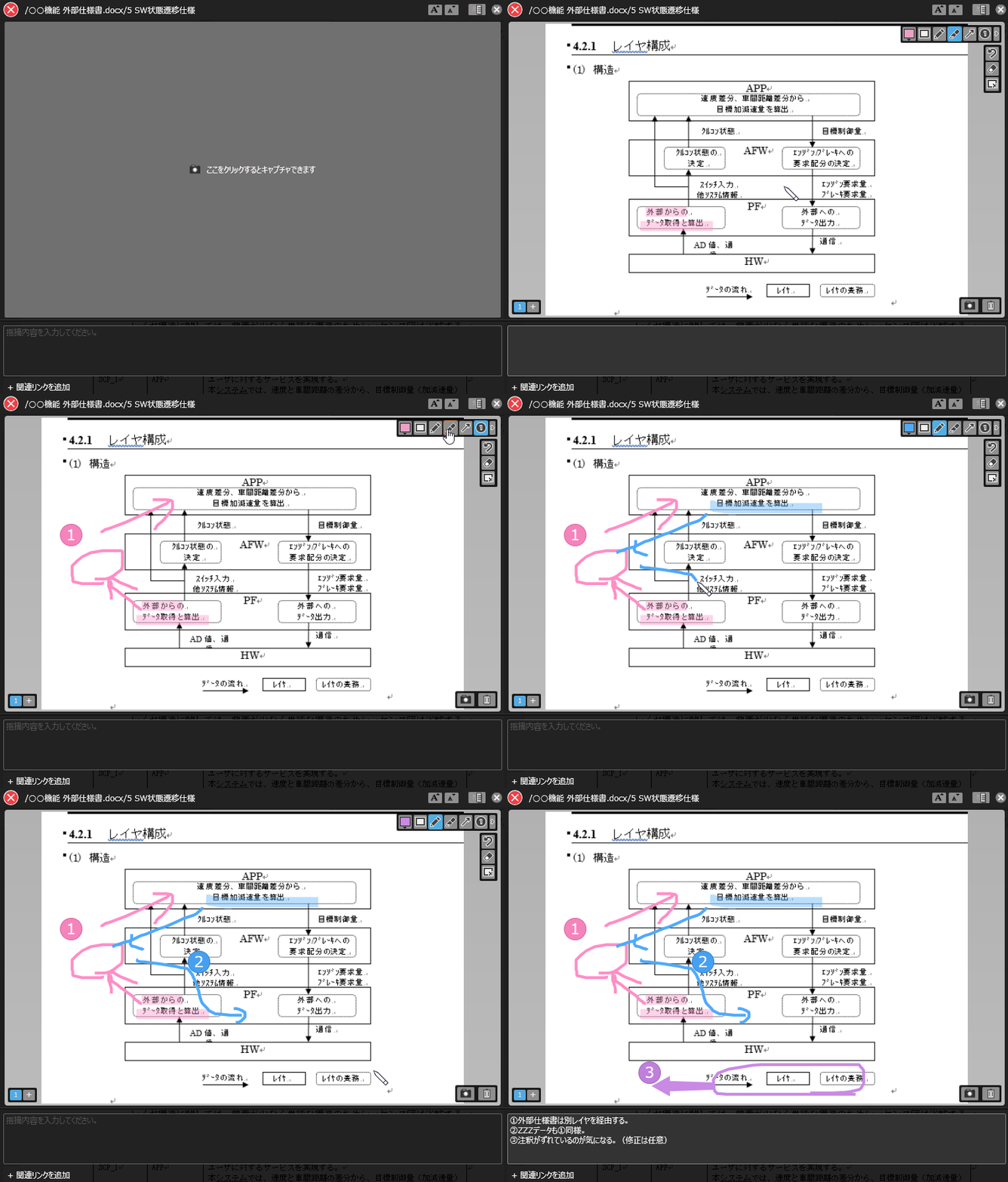
Write Review Feedback
Directly on the Screen
You can mark the text in the image or write arrows directly.
It clearly conveys your intentions, such as what the problem is and how to fix it.
Record Multiple Related Corrections
Without Missing Any
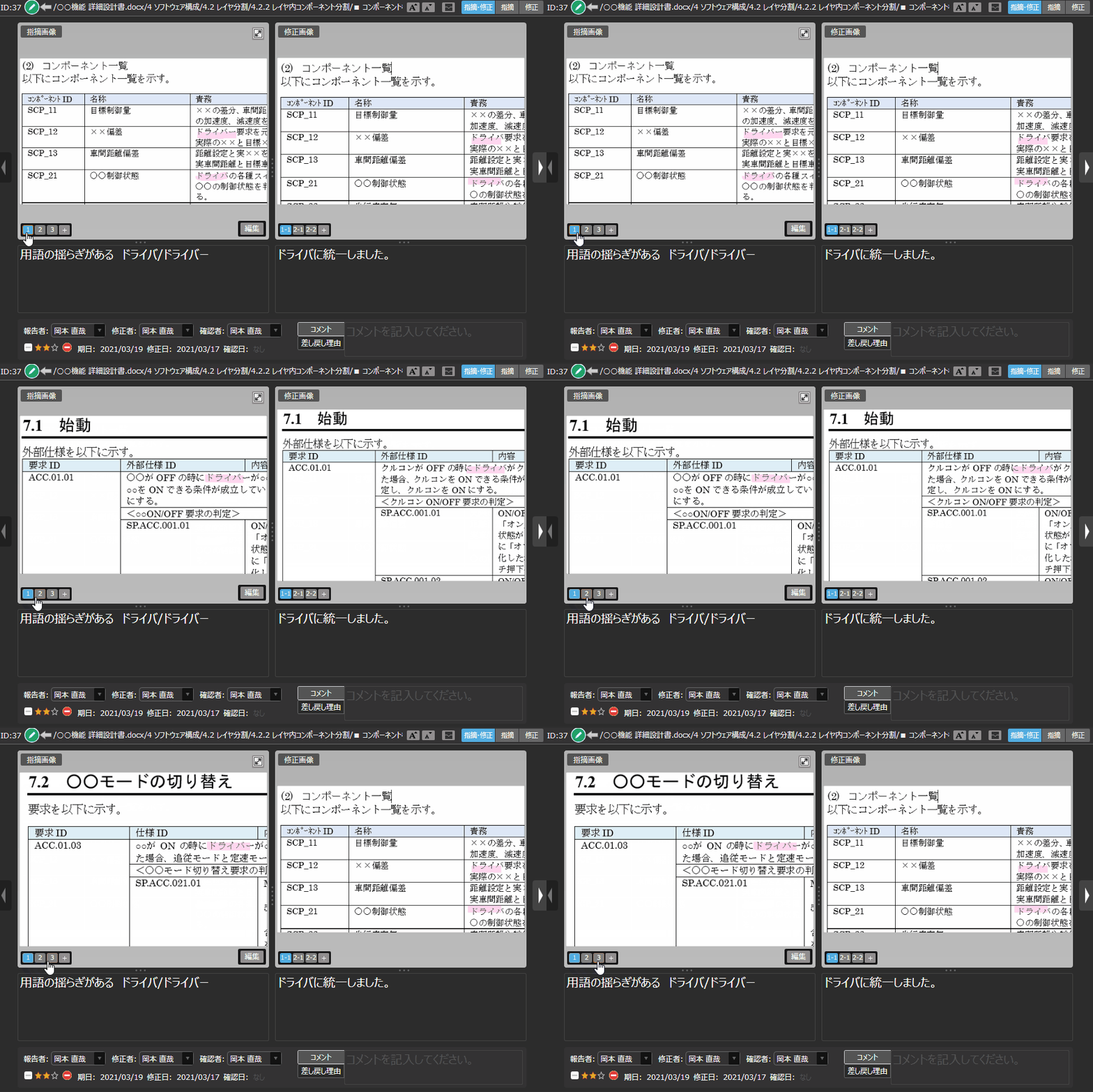
Multiple images can be registered for the indicated contents and correction results.
For example, if multiple corrections are required for a single point, such as a change in terminology, all the corrections can be recorded as images, making it easy to check if the horizontal expansion has been made.
"Direct" confirmation of correction as well
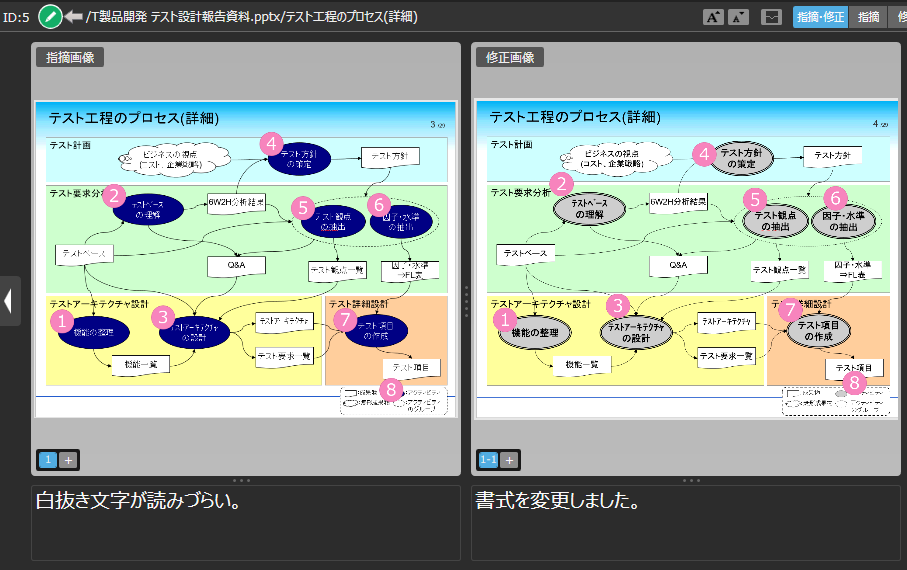
To record the results of the correction, just capture the screen as you pointed out.
By comparing the images before and after the modification, you can be sure to see what was modified and how.
This eliminates the hassles of opening a file and moving it to the target location, and makes corrective confirmation more efficient.
-
Review with viewing documents
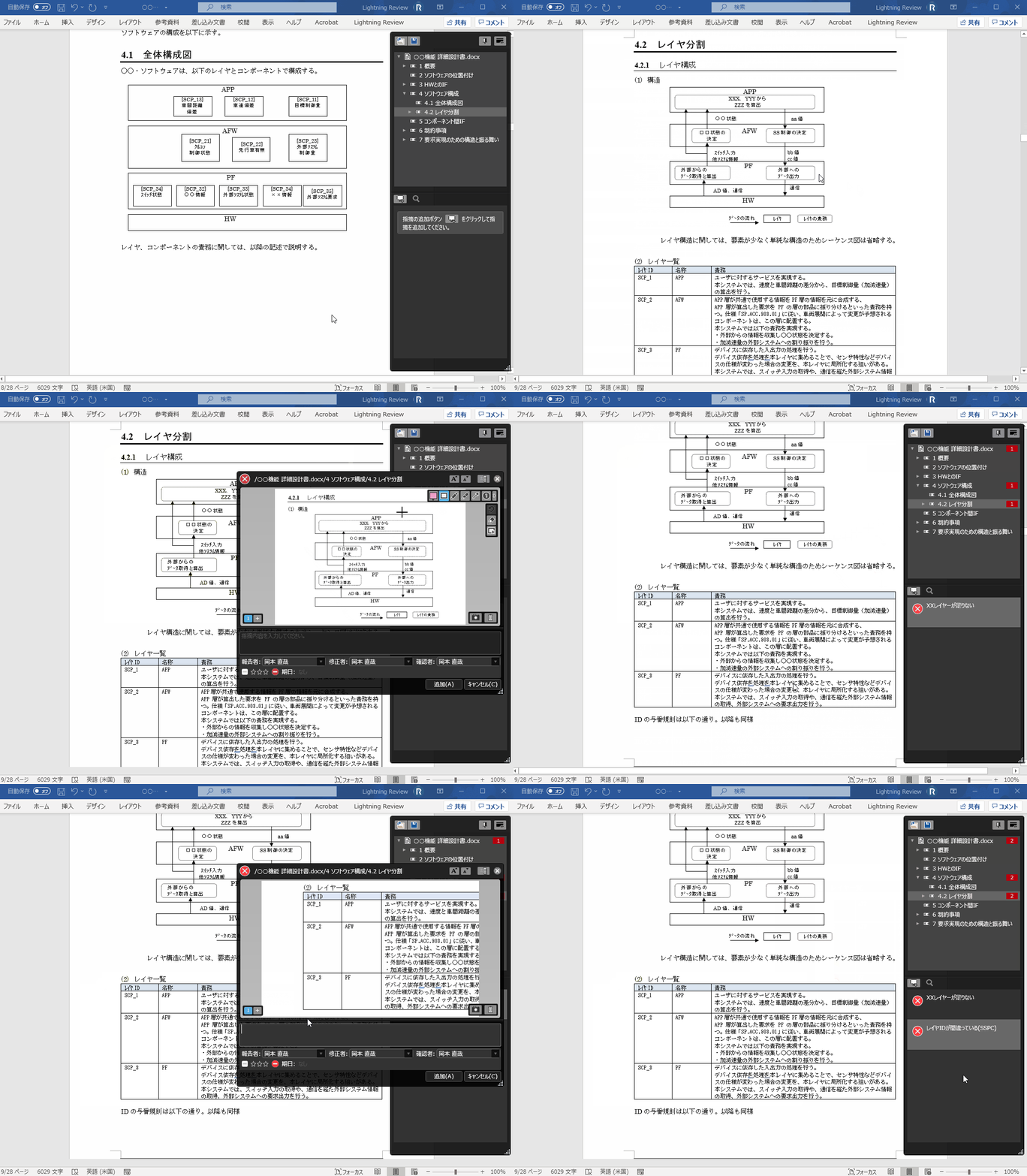
You can also make sidebar View that do not interfere with View of the document.
There is no stress of moving or switching windows each time you register an indication, and you can register the indication smoothly while viewing the document.
-
Easy registering of issues from Office add-in
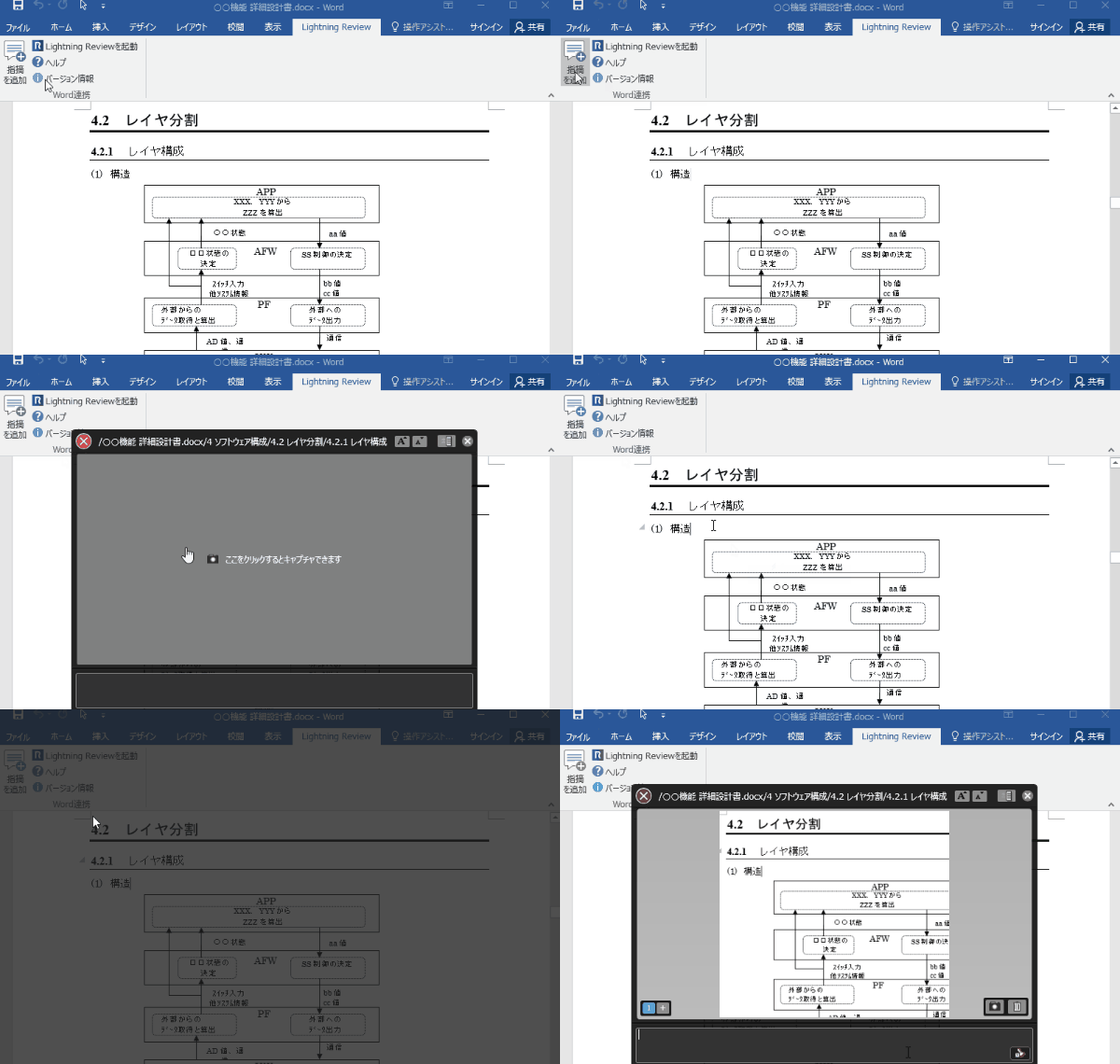
You can also register issues directly from the Office add-in, so you can immediately capture the points you notice.
-
Simultaneous registration of indications by multiple persons
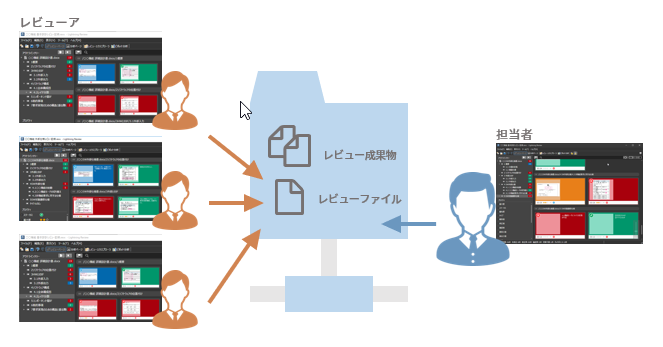
The review file can be shared.
Sharing allows you to edit with others simultaneously in real time. -
Setting links for each indication
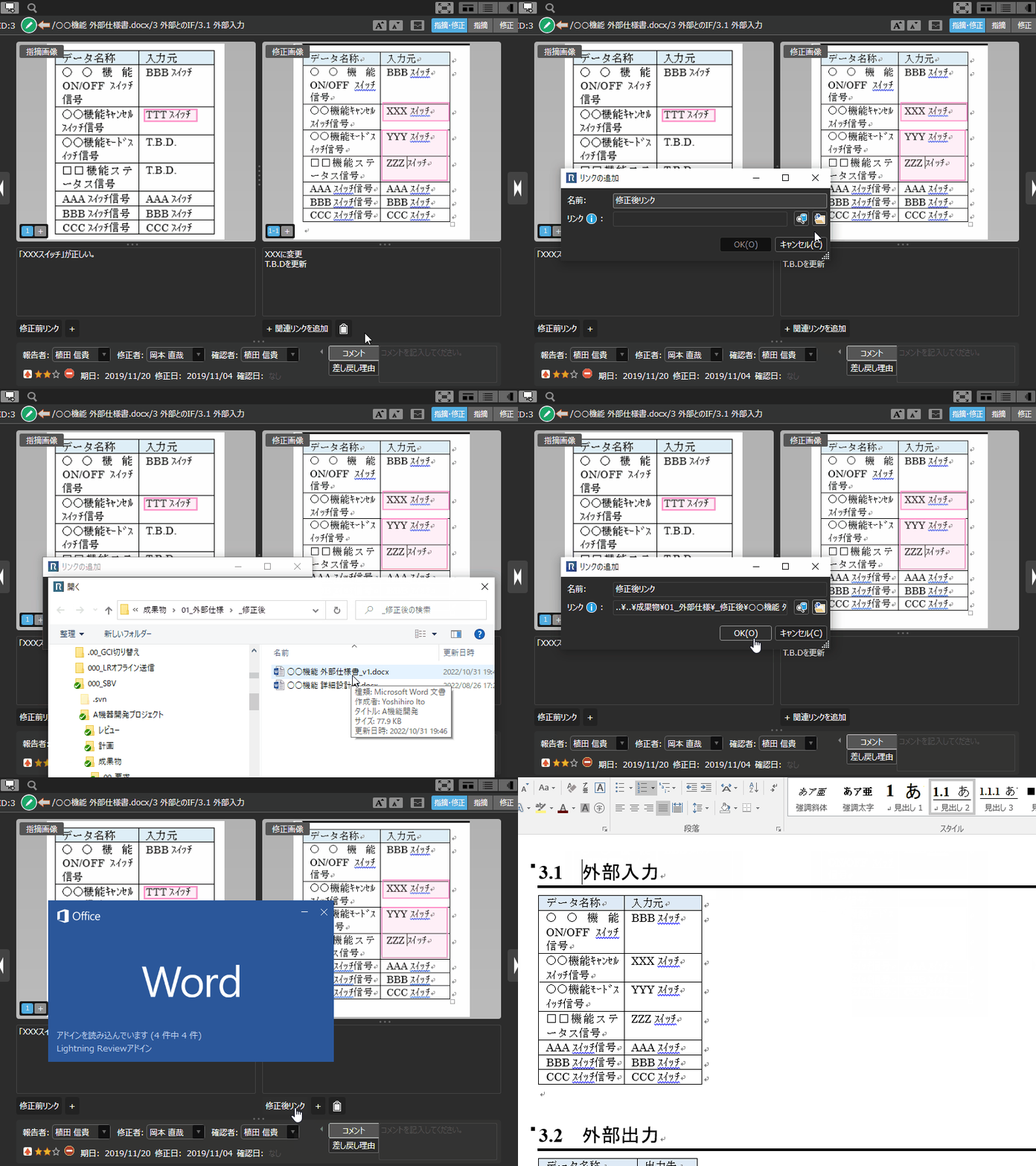
Links can be set for each pointed out.
For example, if you set up a link to the corrected document, the reviewer can immediately open the corrected document to see the corrections.
Function ListFEATURE LIST
You can see a list of Lightning Review functions.